


At 19 · Student
Copy the slide, not a photo of it. Recognise Text turns a lecture into notes you can search.
Screenshots, scrolling pages, recordings and GIFs, with a Library that keeps every one. HeySnapMe saves your captures on your Mac.
Try it free on your Mac first, no account or card. The 30-day free trial needs a card: one automatic US$29.99 payment on day 30 unless you cancel. 14-day money-back guarantee after purchase.
Apple silicon and Intel · Notarized by Apple
New in HeySnapMe
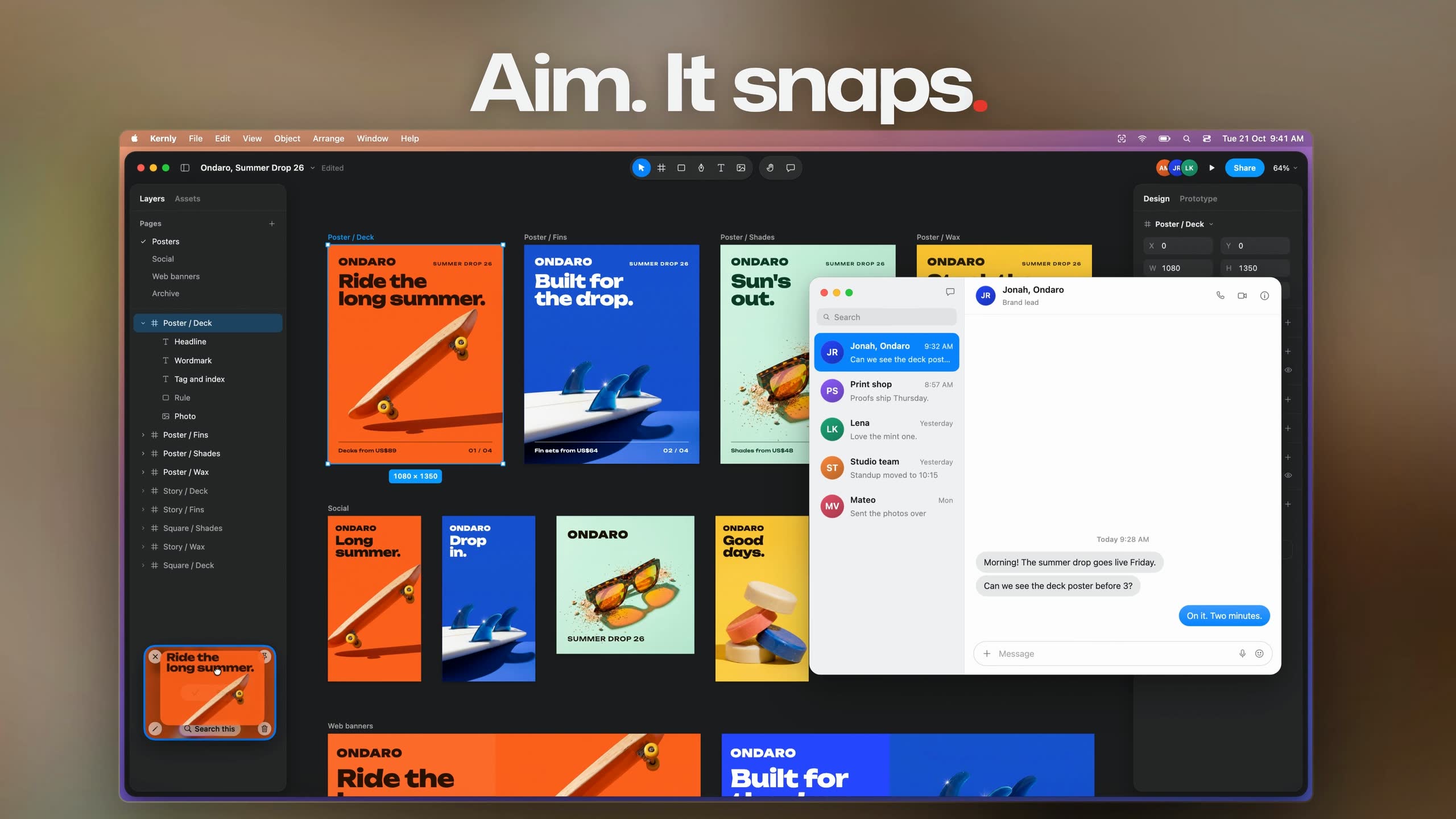
Spot a chair, a book, a plant or a place you love? Capture it and click Search this. AI on your Mac works out what's in the picture and opens the results in your browser.
Your screenshot never leaves your Mac. Only the search words do.
Give any capture a note. Type it, or click the microphone and just say it. Later, search for what you said and the capture comes straight back.
Turned into text on your Mac. Your voice is never kept.
Copy the slide, not a photo of it. Recognise Text turns a lecture into notes you can search.
Show the bug, don't describe it. An arrow says more than a paragraph.
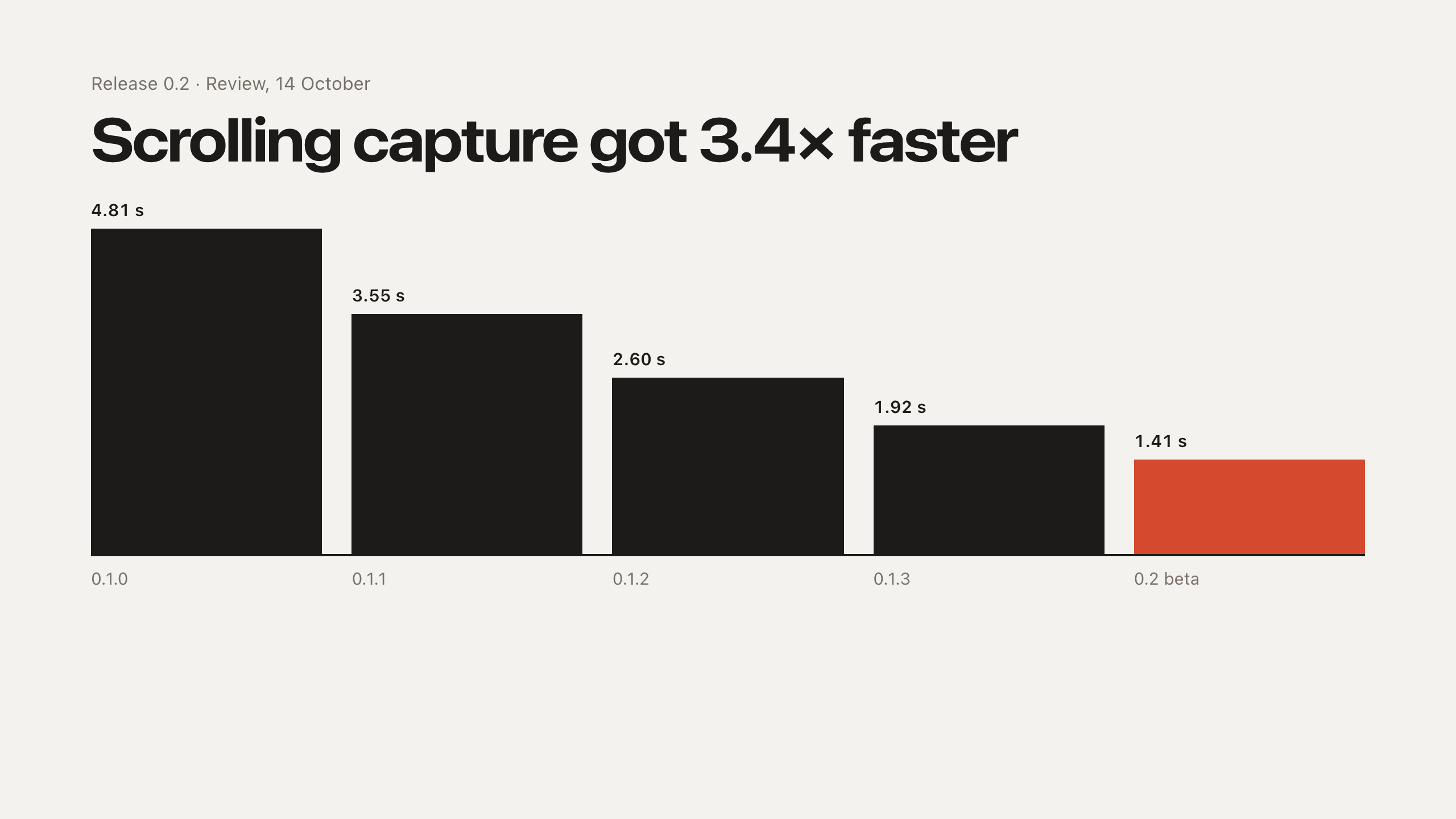
The whole page, in one image. Scrolling Capture stitches it while you scroll.
Show your dad how to join the call, once. Eight seconds of GIF beats twenty minutes on the phone.
Keep the boarding pass in sight, and cover the details you want to keep private.
A lifetime of captures. Still on your Mac, still findable.
Features
An area, a window, the full screen or the same area again, with a magnifier for the last pixel. All in One puts every mode in one bar.
Long pages in one image. Watch it stitch as you scroll, or let Auto Scroll do it. Click the ? beside the frame for tips on what to frame, how to scroll and what to do if it loses its place.
A window keeps its macOS shadow and sits on your wallpaper, with room around it. Hold ⇧ when you click for a clean cut-out.
Menus and tooltips hold still while you draw the frame. Desktop icons can step aside for every capture, behind your wallpaper, a picture or a colour.
Hold ⌘ while you select: a loose frame tightens to what is inside, and a click takes just the button, card, photo or headline under it. Capture Area with Snapping does it without ⌘.
Try it
A small Mac, right in the page. Drag across the window to capture it, or press ⌃⌥⌘5 to record it.
Drag across the desktop to capture an area. Control Option Command 4 starts an area capture, and Return then captures the invoice table. Capture Window is in the HeySnapMe menu, at the right of the menu bar. Control Option Command 5 starts Record Screen: drag to frame the recording and adjust it, then press Return for a video or Option Return for a GIF; with no area drawn, Return records the invoice table. A window capture sits on the wallpaper with its shadow; hold Shift as you click for a cut-out. Control Option Command 5 again stops the recording. Escape cancels. Each capture lands in the bottom left corner with Copy, Save, Search this, Pin, Annotate, Trash and Close, and each recording with Copy, Save, Play, Trash and Close. Search this glows on the card while it works, then the browser opens with the search words; click it again to stop. Hover or focus a card and press Space to preview it.
Privacy
HeySnapMe saves captures, recordings, notes and extracted text locally. HeySnapMe does not upload your captures.
Save a card to start a 30-day free trial. One automatic US$29.99 payment on day 30 buys lifetime access and future updates, unless you cancel first. Use it on 2 Macs.
Signed by us and checked by Apple before it opens.
Read how we handle accounts, devices and payments in our privacy notice.
Shortcuts
Change any of them in Settings, or give a shortcut to any of 32 commands, grouped and searchable. HeySnapMe can take ⇧⌘3, ⇧⌘4 and ⇧⌘5 from macOS, and walks you through it. It warns you when keys clash.
Pricing
Pay once and HeySnapMe is yours, with every future update. There is no subscription and nothing to renew.
Questions about the price and the trial
HeySnapMe
Lifetime access
US$29.99once
Launch offer
Try it free on your Mac first, no account or card. Then your first 30 days are free: save a card to start, and the US$29.99 is charged once, automatically, when they end. Cancel from your account before then to pay nothing.
Launch offer
Offer ends in
The launch offer ends on 18 November 2026 at 23:59 UK time.
Download and try it free on your Mac, no account or card. Then start the 30-day free trial or buy, here or in the app.
Card required to start. One automatic US$29.99 payment on day 30 unless you cancel. No subscription. Lifetime access on 2 Macs. 14-day money-back guarantee after purchase.
The 30-day free trial is a launch offer. When the timer runs out, it ends: after that you can still try HeySnapMe free on your Mac, then buy it once for US$29.99.
Version 0.8.27 · Apple silicon and Intel · Notarized by Apple